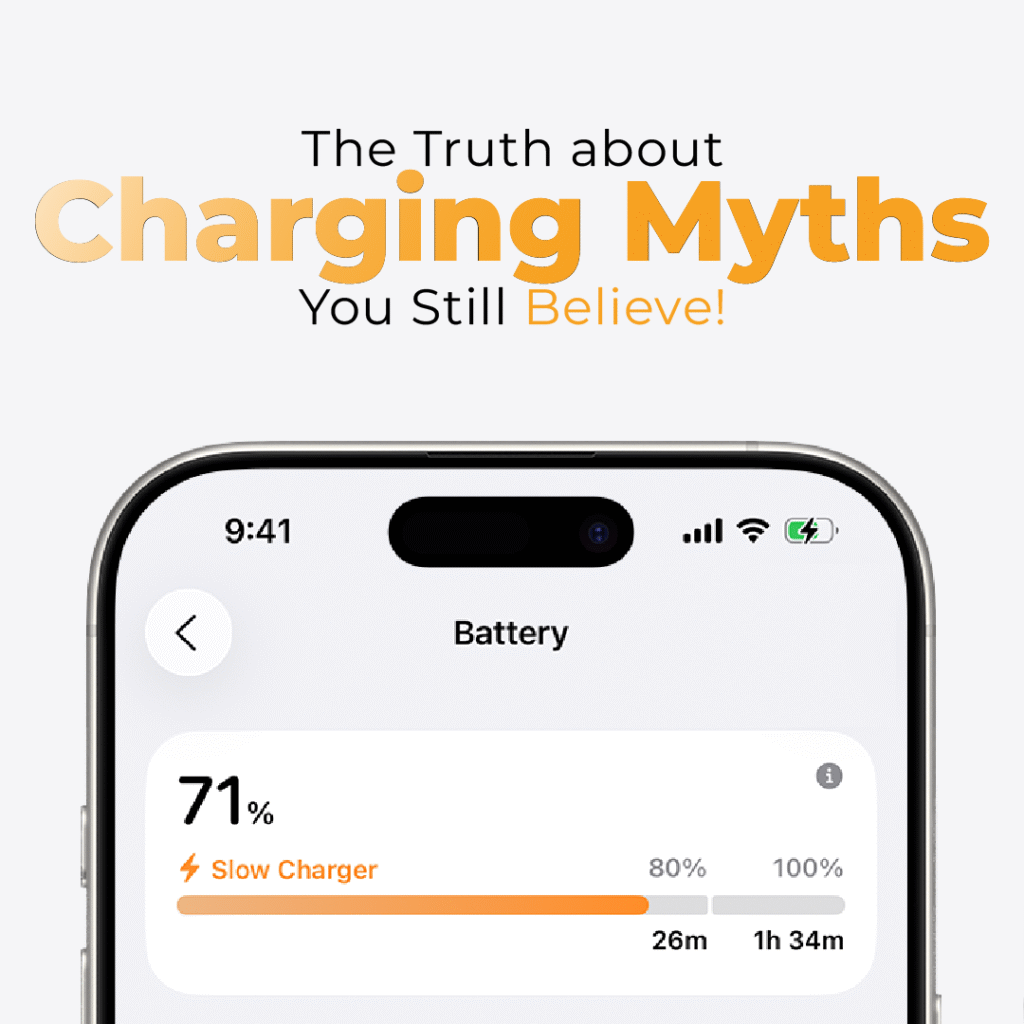
Congratulations on your new phone! Getting a “new-to-you” iPhone is exciting. But before you start downloading your favorite apps, setting up your wallpaper, and showing it off to friends, take a few minutes to make sure the device is truly in the condition you paid for.
Wherever you got your phone from, following these simple steps will give you peace of mind and help you avoid future headaches.
1. Check the iCloud Activation Lock
This is the most important step. If the previous owner’s Apple ID is still linked to the phone, it is not yours, it is theirs.
How to check: Go to Settings > General > Transfer or Reset iPhone.
If you see the previous owner’s name or an email address, the phone is not properly erased. Contact the seller immediately to have them sign out. If the phone asks for a passcode or Apple ID to activate, do not proceed; you could end up with a useless device.
2. Verify the Battery Health of the iPhone
We all want a battery that lasts all day. Even “UK used” phones should have decent battery health.
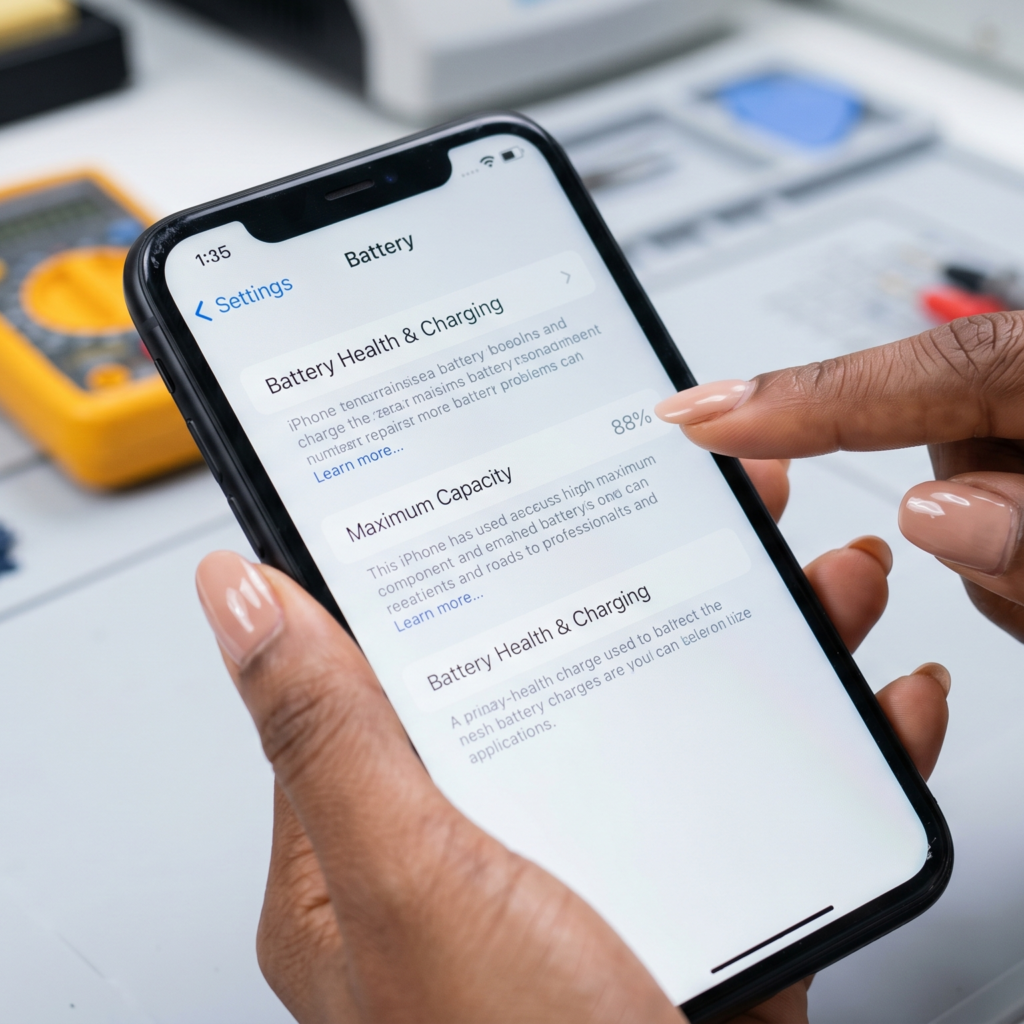
How to check: Go to Settings > Battery > Battery Health & Charging.
Look at the “Maximum Capacity.” While a used phone won’t always be 100%, anything above 80% is generally acceptable. If it is significantly lower, you might experience performance issues or fast draining.
3. Inspect the Hardware and Sensors of the iPhone
Don’t just look at the screen. Test the features you use every day. Open your Camera app and test both front and back cameras. Then, do these quick tests:
Speakers and Microphone: Record a voice memo and play it back to ensure it sounds clear.
Charging Port: Plug it into a charger. Does it start charging immediately? Wiggle the cable slightly; if it disconnects, the port might be loose.
Buttons: Click the volume buttons and the power button. They should feel firm, not “mushy” or stuck.
Face ID: Set up your Face ID. If the phone refuses to set it up or shows an error, there may be a hardware fault.
4. Check the Storage and Model Info
Sometimes what you think you bought isn’t what is inside the phone.
How to check: Go to Settings > General > About.
Check the “Model Name” and “Capacity.” Make sure they match what you paid for. For example, if you paid for a 128GB iPhone, ensure the “Capacity” says 128GB, not 64GB.
5. Perform a Factory Reset
Even if the seller told you they “wiped” the phone, it is safer to do it yourself. This clears out any lingering settings, cache, or glitches from the previous user.
How to do it: Go to Settings > General > Transfer or Reset iPhone > Erase All Content and Settings.
This gives you a fresh start, exactly like a brand-new phone straight out of the box.
Is Your Phone Truly Ready?
Buying a used phone shouldn’t be a gamble. At The Phonepreneur, we handle all these checks for you before the device even hits our shelf. Our phones undergo a rigorous 10-point inspection to ensure your battery, screen, Face ID, and software are 100% reliable.
Still unsure if your current phone is in the best condition? Don’t wait for issues to start. If you are ever worried about your device’s performance, or if you are looking to upgrade to a device you can trust, we are here to help.
Need a recommendation or want to trade in your current phone?
Click here to send us a message on WhatsApp. Let us guide you to the perfect device for your budget!
Discover more from The Phonepreneur Global
Subscribe to get the latest posts sent to your email.