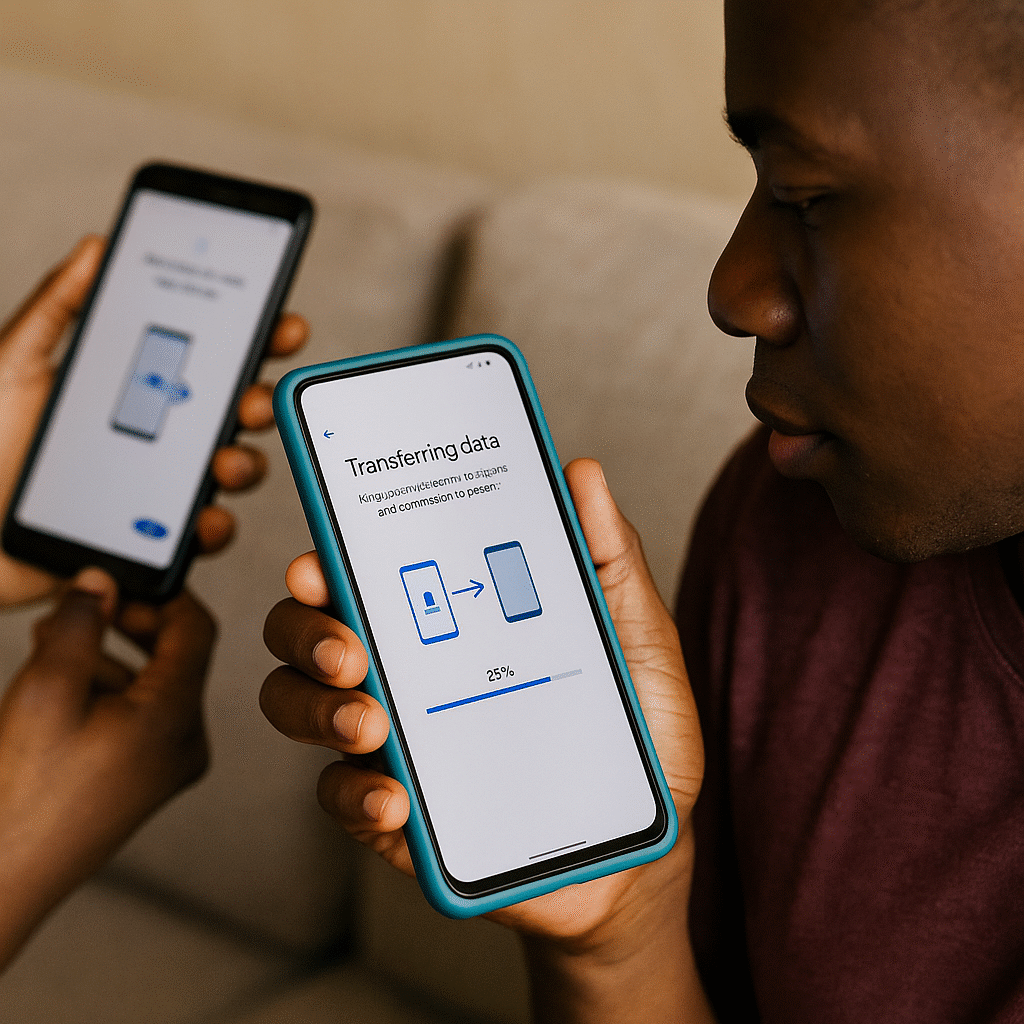
If you’ve ever looked at an iPhone user sending photos instantly with AirDrop and felt a pang of envy, it’s time to meet your new best friend. For Google Pixel owners, that same magic exists under a different name: Quick Share.
Whether you are moving high-resolution 4K videos or a simple PDF, Quick Share on Google Pixel is the fastest, most reliable way to move data without cables, emails, or losing quality. At The Phonepreneur, we specialize in helping you unlock the full potential of your mobile hardware, and mastering this tool is a game-changer for your productivity.
In this guide, we’ll break down everything you need to know about using Quick Share on Google Pixel to master your mobile workflow.
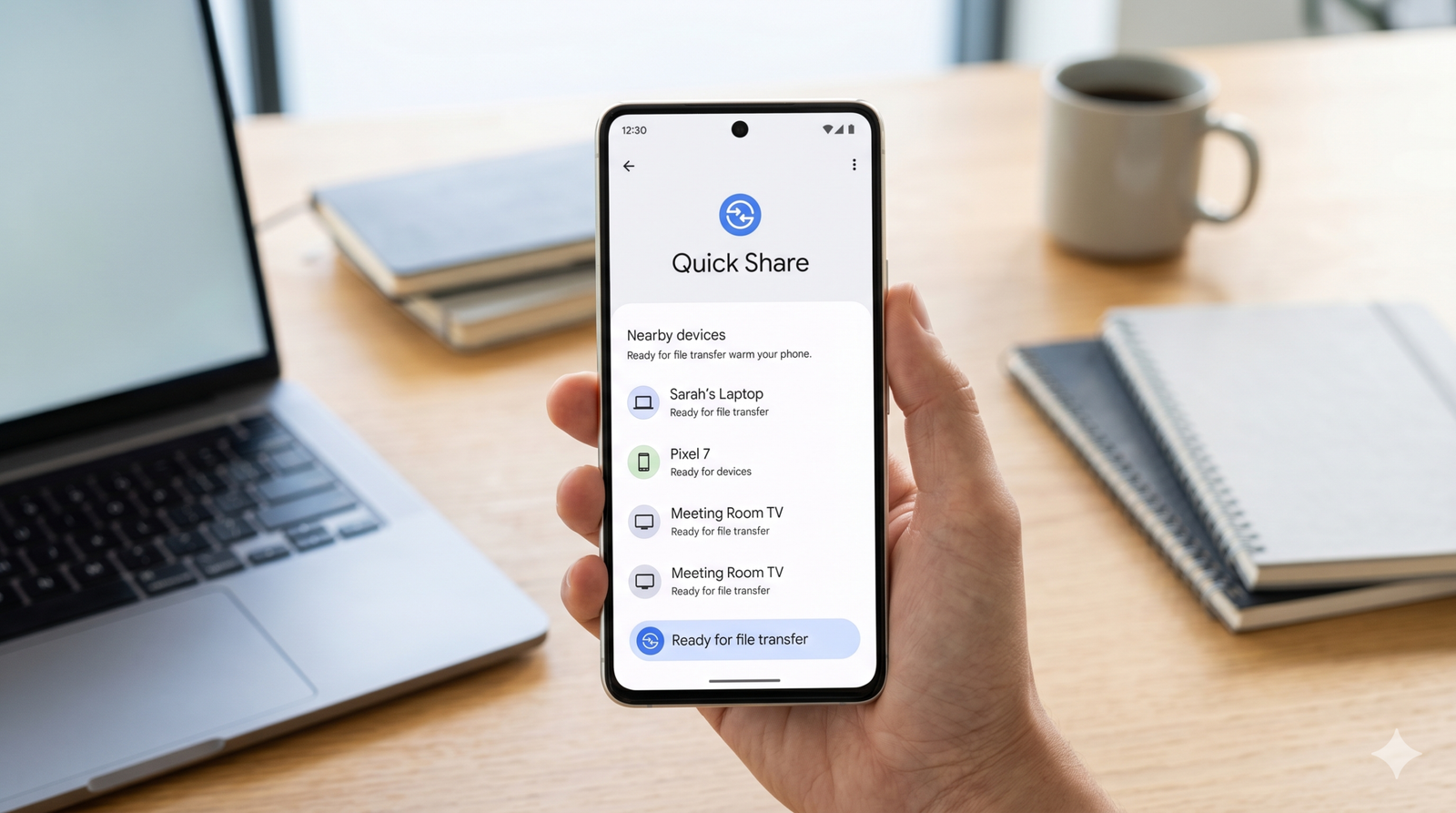
What is Quick Share on Google Pixel?
Quick Share is Android’s native file-sharing system, developed by Google (and recently unified with Samsung’s technology). It allows you to send and receive photos, documents, links, and folders between nearby devices using a combination of Bluetooth and Wi-Fi Direct.
Just like AirDrop, Quick Share on Google Pixel doesn’t require an internet connection or cellular data. It creates a private, peer-to-peer encrypted tunnel between two devices, making it incredibly secure and lightning-fast.
Also Read: Google Pixels 8 Pro Explained
How to Set Up Quick Share on Your Google Pixel
Before you can start beaming files, you need to make sure the feature is active. By default, it’s usually on, but here is how to customize your visibility:
Open Quick Settings: Swipe down twice from the top of your Pixel screen.
Find the Tile: Look for the Quick Share icon (it looks like two interlocking arrows).
Tap and Hold: Long-press the icon to open the settings menu.
Choose Visibility: You can set your device to be visible to:
Your Devices: Only devices signed into your same Google Account.
Contacts: Only people in your contact list.
Everyone: Any nearby device (you can choose to keep this on for only 10 minutes for better privacy).
If you’ve just picked up a clean UK-used Pixel from our store at Mokland Plaza, our team can even help you set this up before you walk out!
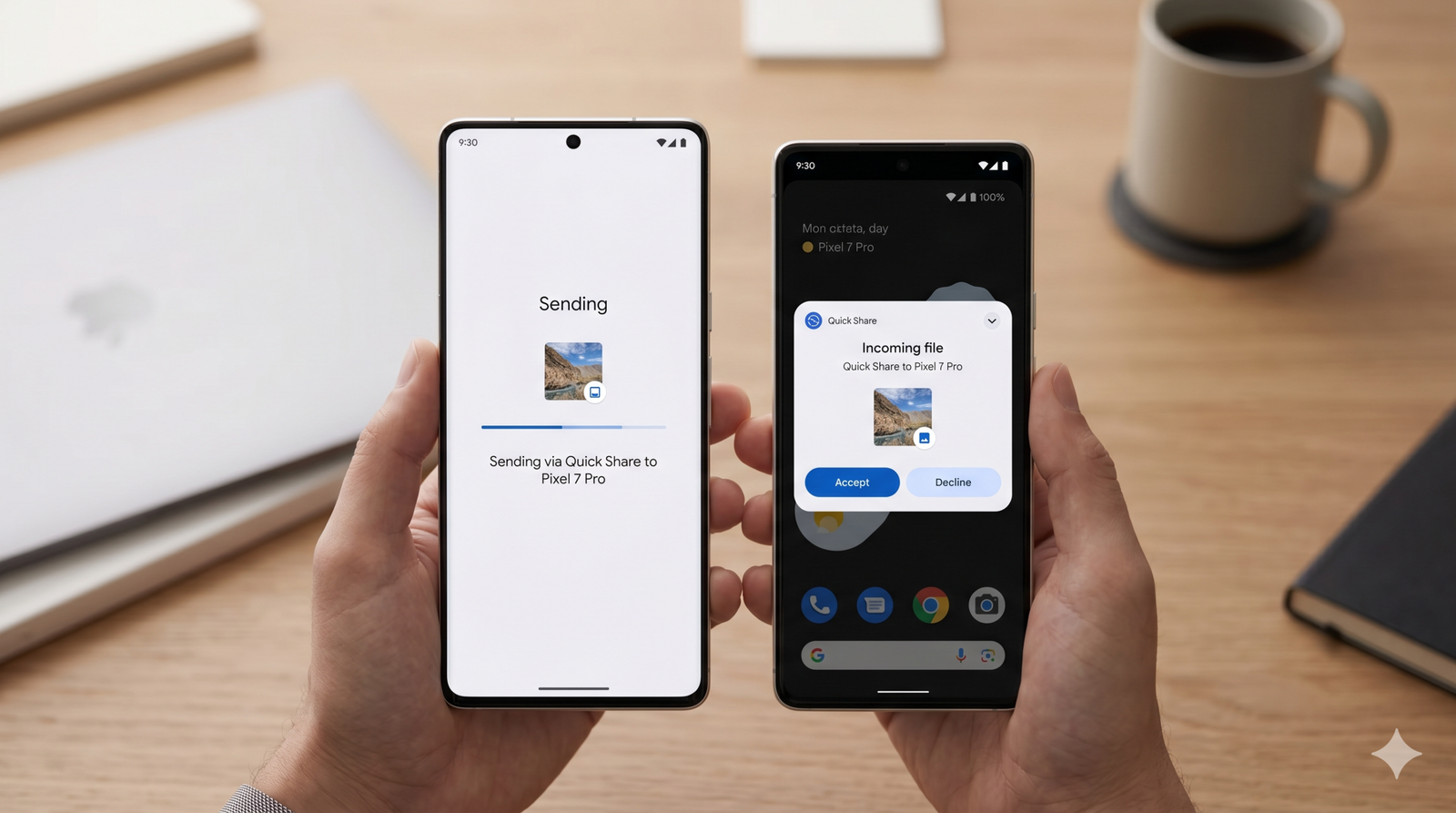
Step-by-Step: Sending Files with Quick Share on Google Pixel
Sending content is intuitive and works across almost any app that has a “Share” button.
1. Select Your Content
Open the file you want to send. This could be a photo in Google Photos, a file in the Files app, or even a website in Chrome.
2. Tap the Share Icon
Look for the universal share symbol (< with dots).
3. Choose Quick Share
In the share sheet that pops up, Quick Share will be one of the primary options. Tap it.
4. Select the Recipient
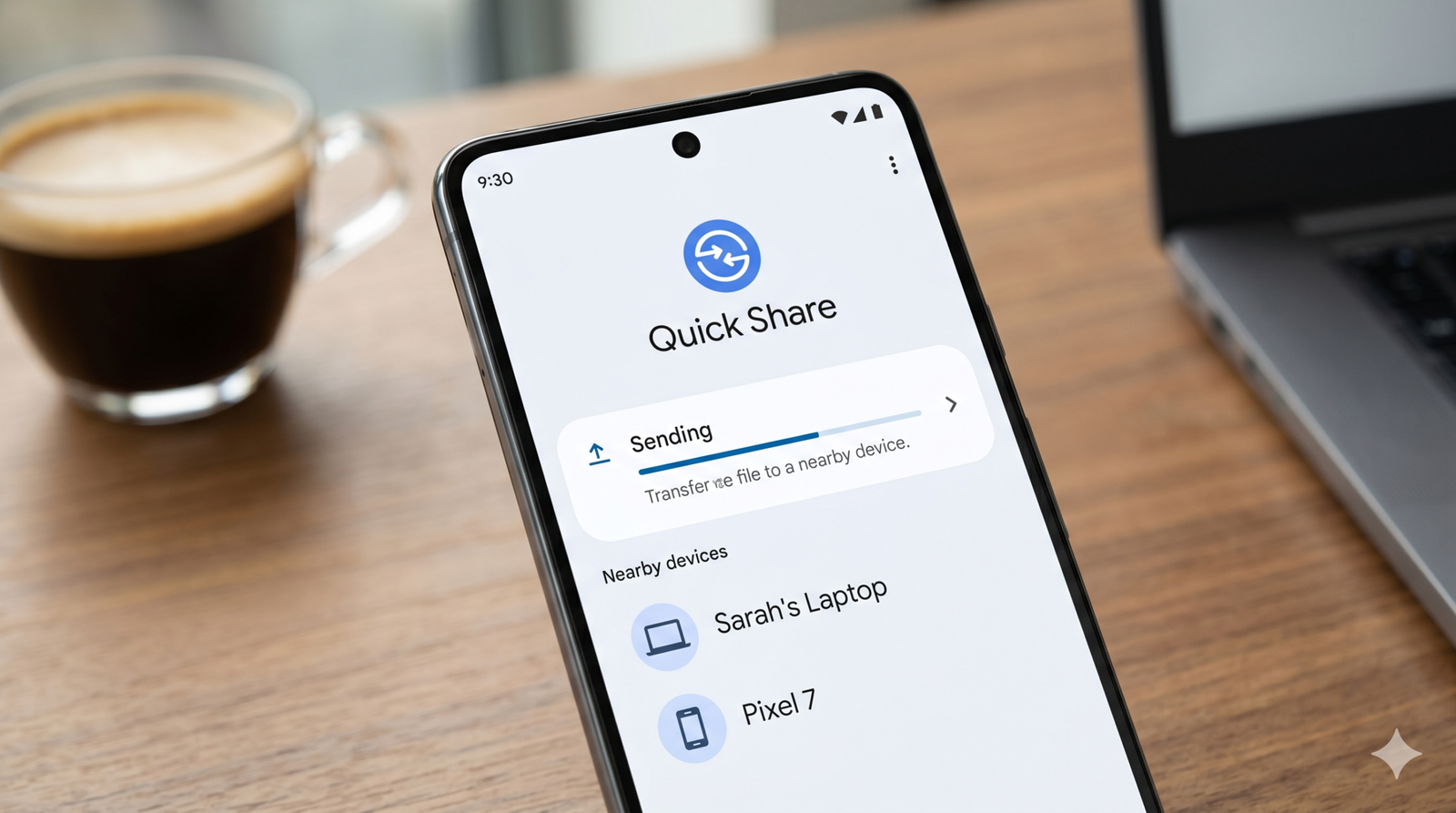
Your Pixel will start scanning for nearby devices. Once the receiver’s name appears (e.g., “Sarah’s Pixel 9” or “Living Room Laptop”), tap their icon.
5. Wait for Acceptance
The receiver will get a notification. Once they tap Accept, the transfer begins instantly.
Quick Share Beyond Your Phone
One of the best things about Quick Share on Google Pixel is that it isn’t limited to just other Pixel phones. At The Phonepreneur, we also stock tested and trusted UK/US used laptops perfect for remote work and business. You can use Quick Share to move files between your Pixel and your laptop seamlessly.
To Windows PCs: You can download the Quick Share for Windows app. This allows you to drag and drop files from your computer directly onto your Pixel, or vice versa.
To Chromebooks: Quick Share is built directly into ChromeOS, making the Pixel-to-Chromebook handoff seamless.
To iPhones (New for 2026!): Thanks to recent updates in 2026, many Pixel devices can now bridge the gap to Apple devices. By selecting the “Share to Apple” or QR code option within the Quick Share menu, you can now transfer files to AirDrop-compatible devices more easily than ever before.
Troubleshooting Quick Share on Google Pixel
Is your transfer hanging? Here are three quick fixes to get Quick Share on Google Pixel working again:
Distance Matters: Keep both devices within 1 foot (30 cm) of each other for the initial handshake.
Unlock the Screen: The receiving device must be unlocked and the screen must be on to “see” the transfer request.
Check Connections: Ensure both Bluetooth and Location services are turned on. Quick Share uses Bluetooth to find the device and Wi-Fi to move the data.
Why Use Quick Share Instead of Email or Messaging?
| Feature | Quick Share | Email/WhatsApp |
| Speed | Instant (Wi-Fi Direct) | Slow (Upload/Download) |
| Quality | Original (No Compression) | Often Compressed |
| Internet | Not Required | Required |
| Security | Peer-to-Peer Encryption | Stored on Servers |
Summary
Quick Share on Google Pixel turns your phone into a productivity powerhouse. It eliminates the clunky steps of “emailing yourself a photo” and brings the “it just works” philosophy to the Android ecosystem.
Whether you’re sharing vacation photos with a friend or moving a presentation to your laptop, Quick Share is the only tool you need.
Pro Tip: If you share between your own devices (signed into the same Google account), you don’t even have to click “Accept”—the transfer happens automatically!
Why Buy Your Pixel from The Phonepreneur?
We don’t just sell gadgets; we provide tools for your success. Whether you need a device for school, business, or remote work, we are known for doing a great job at affordable prices.
Nationwide Delivery: Not in Lagos? No problem. We deliver across Nigeria.
Walk-In Service: Visit us for a consultation and see our limited stock of clean systems and phones.
Trusted Quality: Every gadget is tested to ensure you get the best value for your money.
Visit Us Today
Ready to upgrade to a Google Pixel and experience the speed of Quick Share? Reach out to The Phonepreneur or visit our office.
📍 Address: 2 Pepple Street, Mokland Plaza, 1st Floor Right Wing, Opp. Zenith Bank, Computer Village, Ikeja, Lagos.
📞 Contact: 08106360694 | 08146321691
📸 Instagram: @the_phonepreneur
🎵 TikTok: @thephonepreneur
✅ Join our WhatsApp Channel for exclusive deals: Click Here
The Phonepreneur — We are here for you.
Discover more from The Phonepreneur Global
Subscribe to get the latest posts sent to your email.