
Buying a laptop is an investment. Whether you are purchasing a brand-new device or a refurbished one, it is important to confirm that everything works exactly as it should before you walk away with it.
Many people check only the appearance of a laptop and forget the most important part, which is functionality. A laptop may look perfect on the outside but still have hidden issues with the keyboard, battery, Wi-Fi, or internal components.
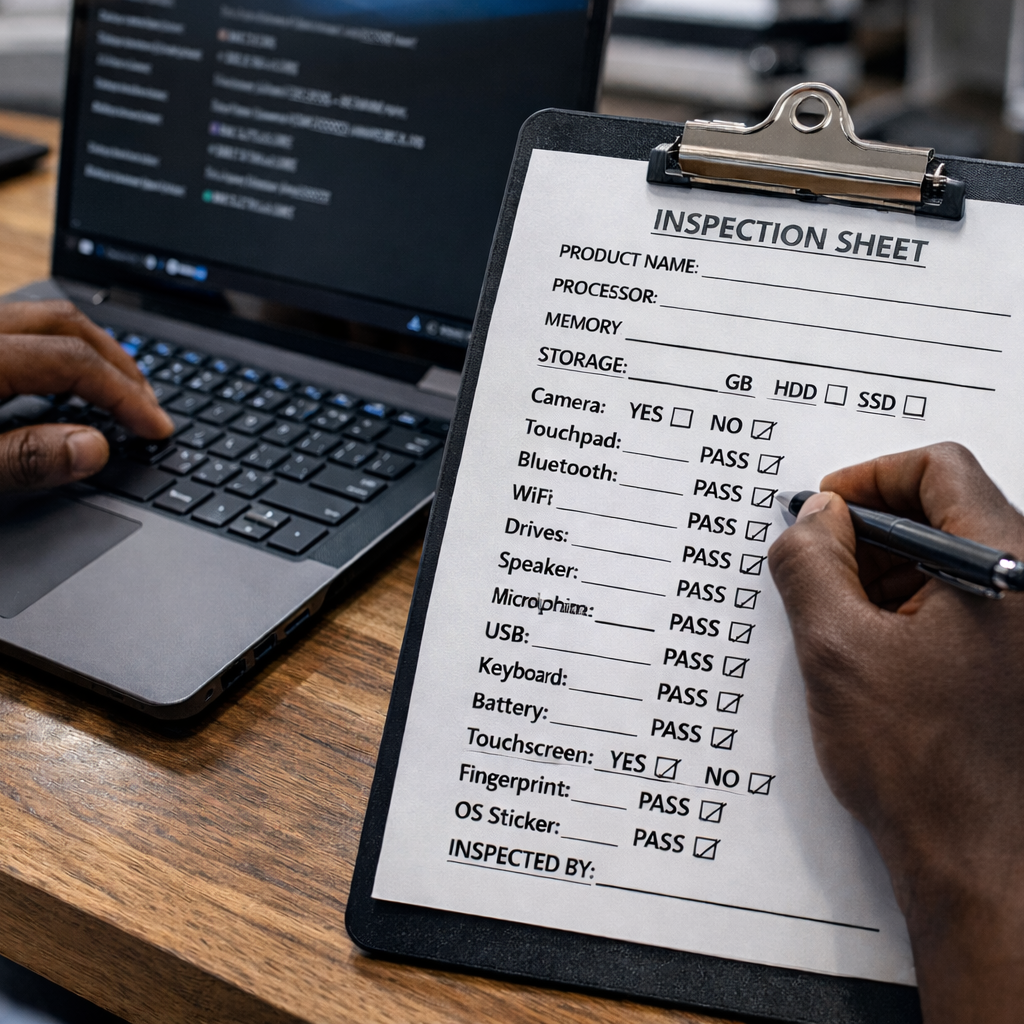
At The Phonepreneur, we always encourage customers to test a laptop properly before completing a purchase. Below is a simple but powerful Laptop Inspection Checklist you can use to confirm that your device is working perfectly.

1. Confirm the Core Specifications
The first step is to verify that the laptop you are buying matches the advertised specifications.
Check the following:
Product Name
Confirm the exact model of the laptop.
Processor (CPU)
Ensure the processor matches what was advertised. For example:
Intel Core i5, Core i7, AMD Ryzen, etc.
Memory (RAM)
Verify the RAM capacity. For example:
8GB, 16GB, or higher.
Storage
Check both the size and type of storage.
Example:
256GB SSD
512GB SSD
1TB HDD
An SSD is faster and more reliable than a traditional HDD, so it is important to confirm this.

2. Test the Camera
Open the camera application and confirm that the webcam works properly.
Check that:
- The image is clear
- The camera activates quickly
- There are no display glitches
This is especially important if you attend online meetings or classes.
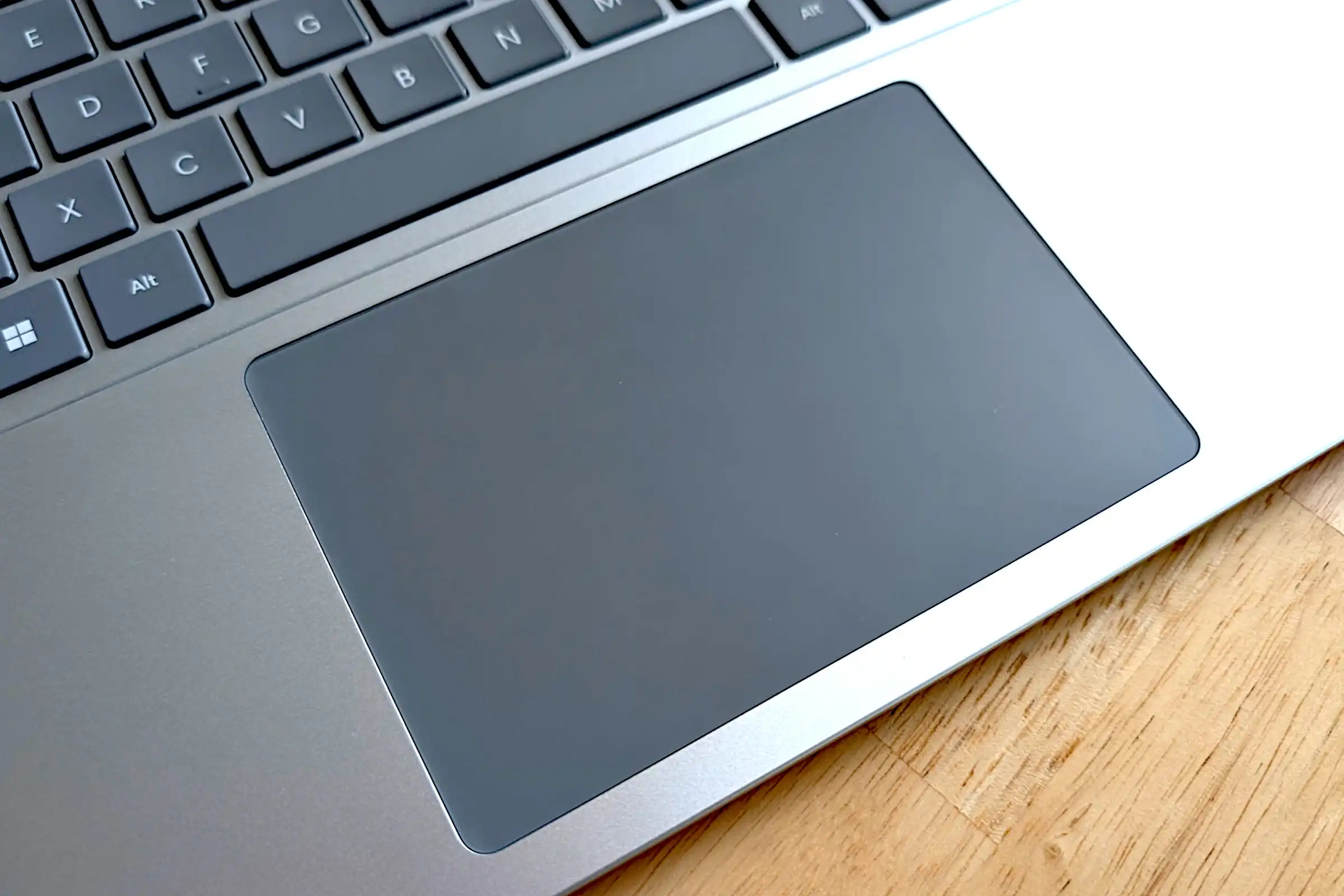
3. Test the Touchpad
The touchpad should respond smoothly.
Check that:
- Cursor movement is accurate
- Left and right clicks work
- Multi-touch gestures respond correctly
A faulty touchpad can make a laptop frustrating to use.
4. Check Connectivity Features
Modern laptops depend heavily on wireless connections.
Test the following:
Bluetooth
Turn it on and confirm it activates properly.
Wi-Fi
Connect to a network and check that the signal is stable.
Reliable connectivity is essential for productivity.
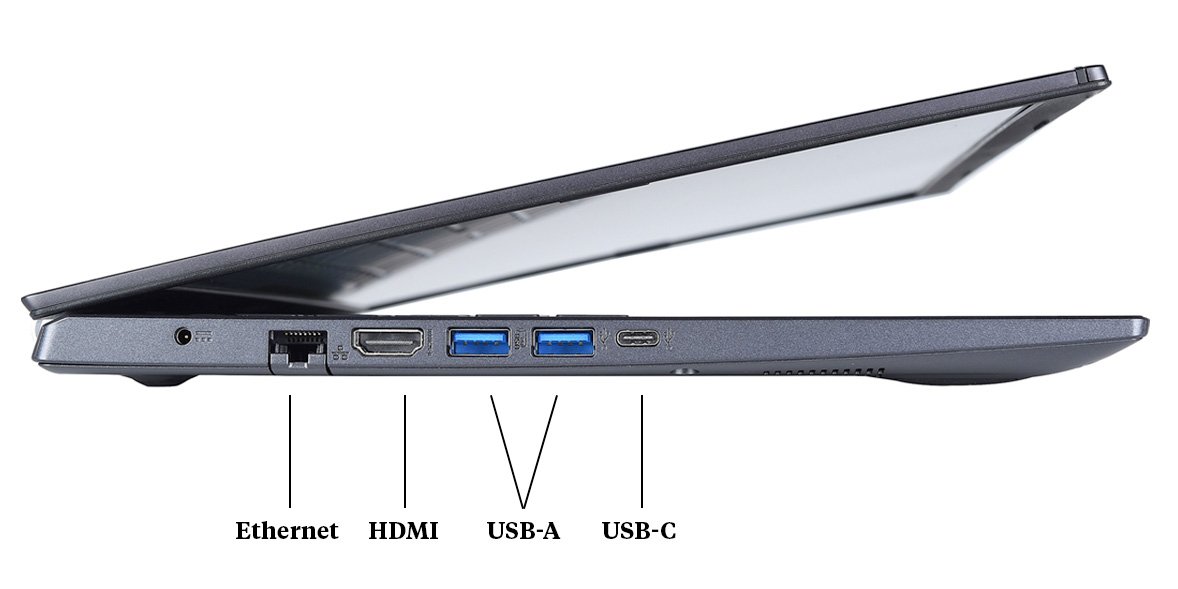
5. Test External Hardware Components
A proper inspection must include testing the physical components.
Make sure to check:
Drives
If the laptop includes a drive slot, confirm it opens and reads properly.
Speakers
Play audio to verify sound quality and volume.
Microphone
Record a short audio clip to confirm that the mic works clearly.
USB Ports
Insert a flash drive to ensure the ports detect external devices.

6. Inspect the Display Quality
Laptop screens vary widely in quality.
Check the resolution and clarity of the display.
Look for:
- Brightness consistency
- No dead pixels
- No screen flickering
- Clear text and images
A poor display can ruin the experience of using a laptop.
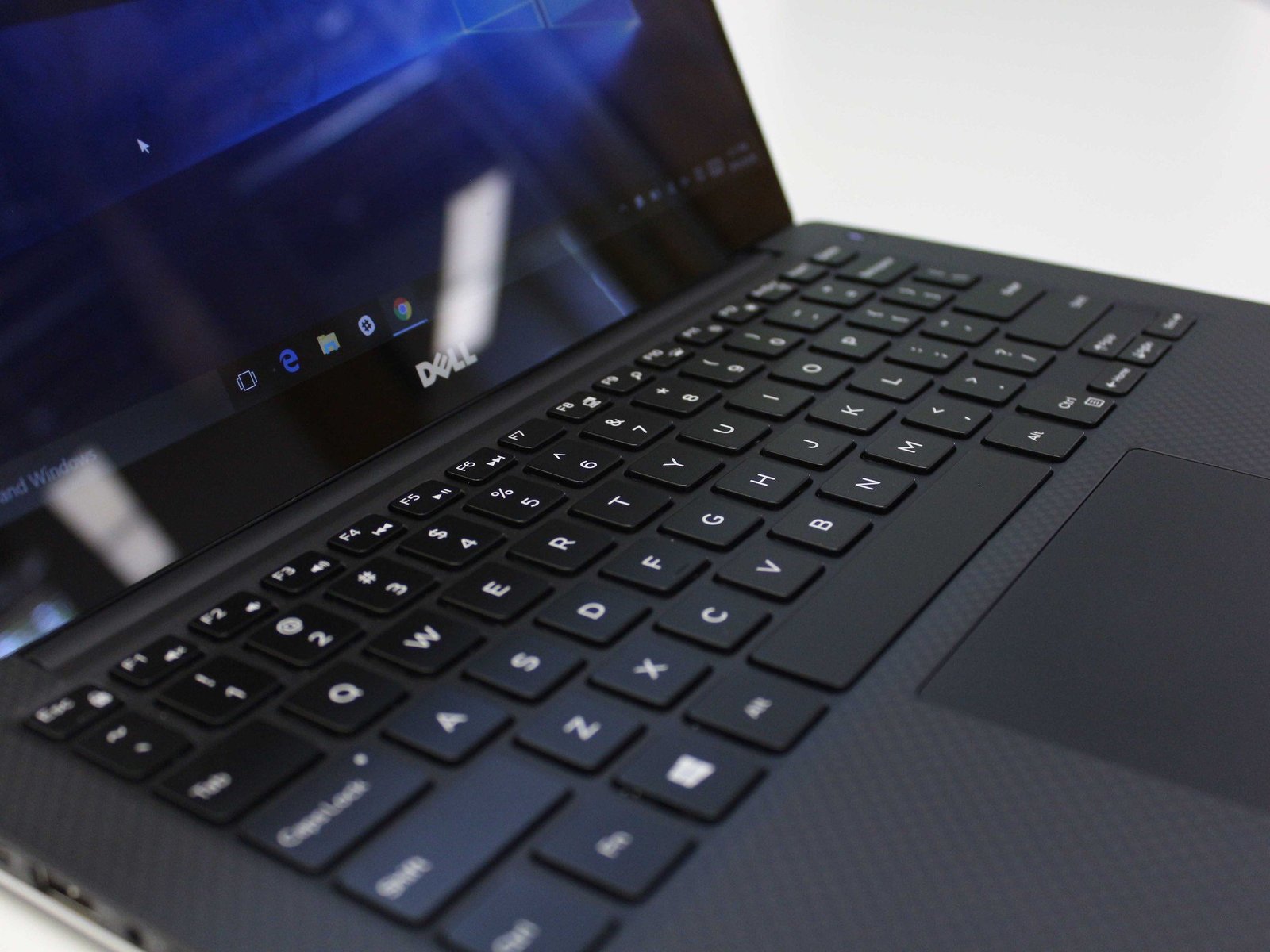
7. Test the Keyboard
Type a few sentences and ensure:
- All keys respond properly
- No keys are stuck
- Typing feels comfortable
If the laptop has a keyboard backlight, confirm that it works.
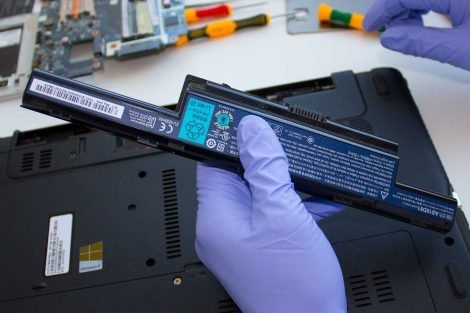
8. Check the Battery Health
Battery performance is very important.
Confirm that:
- The battery charges properly
- The laptop does not shut down unexpectedly
- The battery indicator works correctly
A weak battery can reduce the value of a laptop significantly.
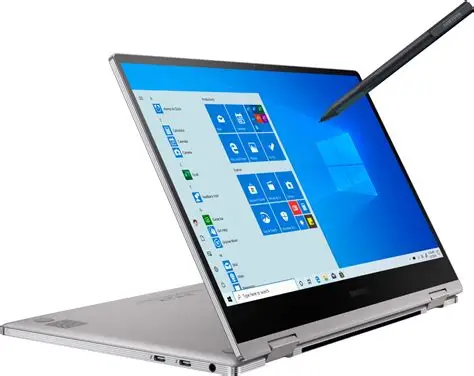
9. Verify Extra Features
Some laptops include additional features that should also be tested.
These include:
Touchscreen
Confirm touch response across the screen.
Fingerprint Reader
Test the fingerprint sensor if available.
Operating System Sticker
Verify the original OS license sticker if the laptop includes one.
A Simple Laptop Inspection Sheet
When inspecting a laptop, you can use a checklist like this:
Product Name: __________________________
Processor: ______________________________
Memory: ________________________________
Storage: ______ GB HDD ☐ SSD ☐
Camera: YES ☐ NO ☐
Touchpad: PASS ☐
Bluetooth: PASS ☐
Wi-Fi: PASS ☐
Drives: PASS ☐
Speaker: PASS ☐
Resolution: __________________________
Microphone: PASS ☐
USB: PASS ☐
Keyboard: PASS ☐
Battery: PASS ☐
Touchscreen: YES ☐ NO ☐
Fingerprint: PASS ☐
Keyboard Backlight: PASS ☐
OS Sticker: PASS ☐

Buy Smart. Inspect First.
A proper inspection protects your money and ensures you get a laptop that performs exactly as expected.
At The Phonepreneur, every device is carefully checked to ensure quality and reliability. Whether you are buying a laptop for work, school, or business, taking a few minutes to inspect the device can save you from costly surprises later.
A smart buyer always tests before trusting.
Discover more from The Phonepreneur Global
Subscribe to get the latest posts sent to your email.
