

Android phones are everywhere in Nigeria and across the world. From budget-friendly models to premium flagships, they all keep getting smarter with new updates. But many people don’t know about the latest features that can make life easier, safer, and more fun.
This article explains these features in simple language, with examples anyone can relate to. Come along!
SHOP ORIGINAL GADGETS AT THE PHONEPRENEUR

1. Circle to Search
Imagine you’re on WhatsApp or Facebook and you see a shoe you like. Instead of typing “Nike sneakers” into Google, you can now draw a circle around the shoe on your screen. Instantly, your phone shows you where to buy it, the price, and similar options.
This works on most Android 13 and newer phones. It saves time and makes searching more natural.
2. AI-Powered Summaries and Smart Replies
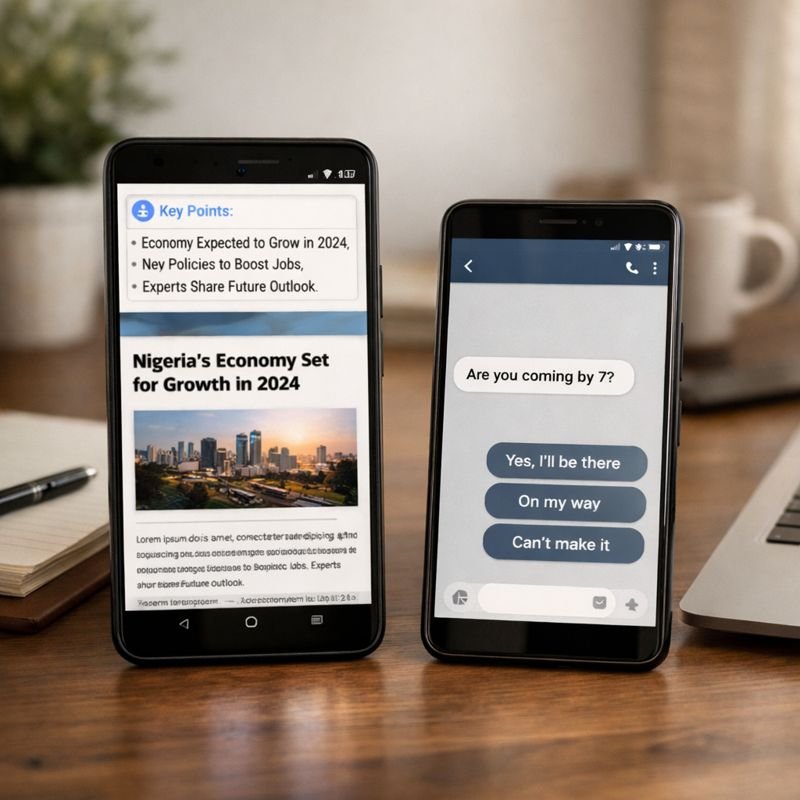
Reading a long news article? Your phone can now summarize it into a few short points so you get the main idea quickly.
Also, when someone texts “Are you coming by 7?”, your phone may suggest quick answers like “Yes, I’ll be there.” You just tap to send.
This is especially useful for busy people who don’t want to type long messages.
3. Emergency Messaging Without Network
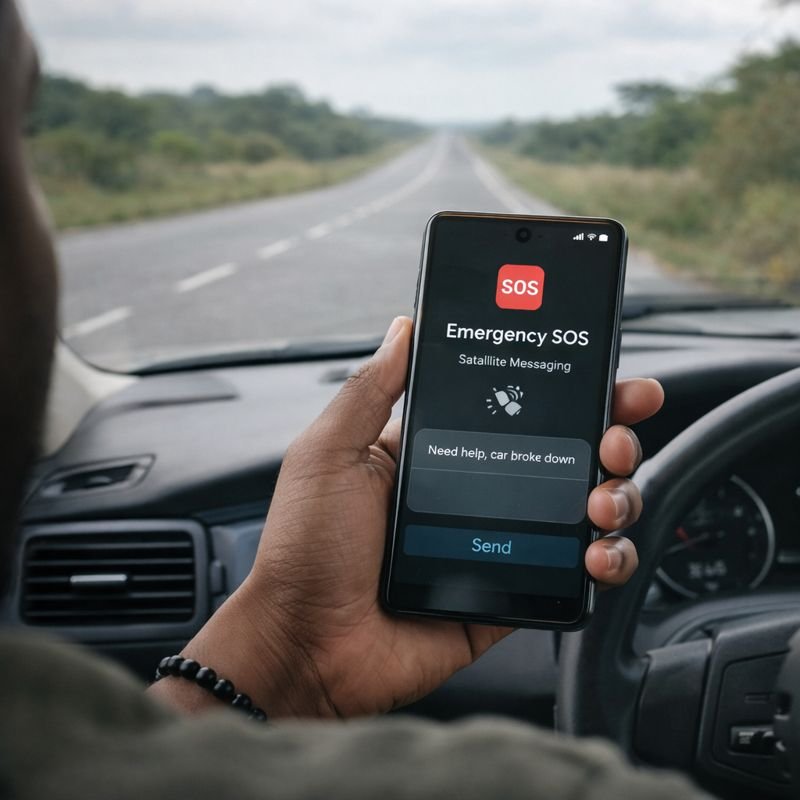
Sometimes in Nigeria, you may travel to rural areas or highways where there is no mobile network. Newer Android phones now allow emergency text messaging through satellite. This means even if your SIM card has no signal, you can still send a message for help.
This feature is still coming to more devices, but it’s a big step for safety.
How to use it (on supported phones):
- Go to Messages app.
- Try sending a text → if no network, your phone will suggest Satellite SOS.
- Follow on-screen instructions to connect to a satellite.
Example: Traveling on a highway with no service, you can still send “Need help, car broke down” via satellite.
SHOP ORIGINAL GADGETS AT THE PHONEPRENEUR
4. AI Wallpapers
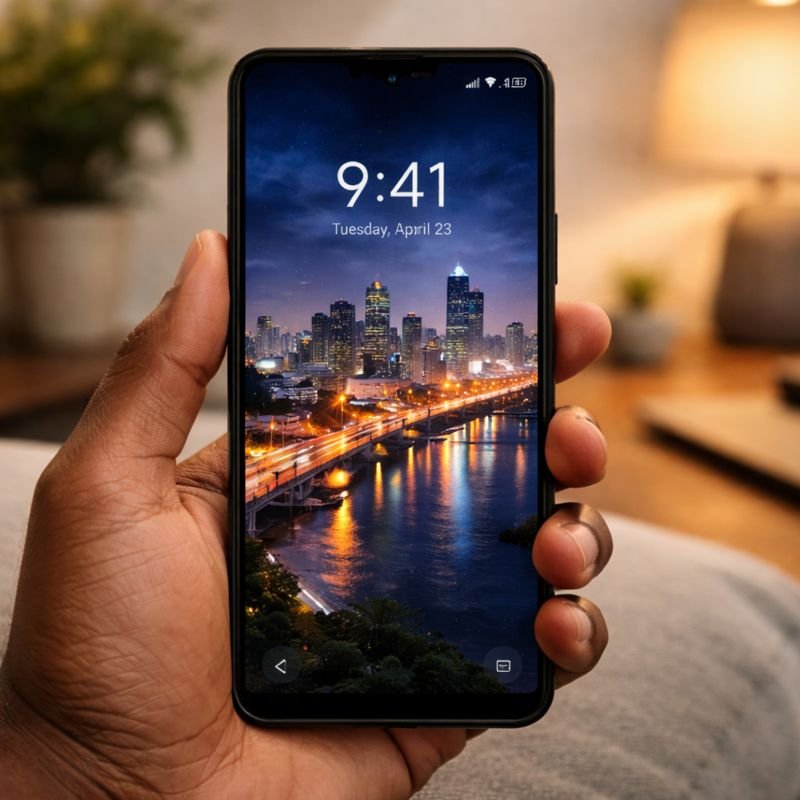
Tired of boring wallpapers? Now you can describe what you want and your phone will create it. For example, you can say: “Show me Lagos at night with bright lights” and your phone will generate a wallpaper instantly.
This makes your phone feel more personal and unique.
How to use it:
- Go to Settings → Wallpaper & Style.
- Tap AI Wallpaper.
- Type or choose a description (e.g., “Sunset at the beach with palm trees”).
- Your phone creates the wallpaper instantly.
5. Cross-Device Copy and Paste
If you use both a phone and a laptop, this will surprise you. You can now copy text on your Android phone and paste it directly on your tablet or Chromebook. For example, copy a WhatsApp number on your phone and paste it into a document on your laptop.
It makes multitasking much easier.
How to Set It Up
- Same Google Account:
- Make sure your phone and your other device (tablet or Chromebook) are signed into the same Google account.
- This is what connects them together.
- Turn on Nearby Share or Clipboard Sync (depending on your device):
- On your phone, go to Settings → Google → Devices & Sharing → Nearby Share.
- Make sure it’s turned on.
- On your tablet or Chromebook, check that Clipboard Sync or Nearby Share is enabled.
How to Use It
- On your phone, find the text you want to copy (for example, a WhatsApp number).
- Long press the text → tap Copy.
- Switch to your tablet or Chromebook.
- Go to the app where you want to paste (like Google Docs, Notes, or Chrome).
- Tap and hold → Paste.
- The text you copied on your phone will appear instantly on your other device.
Example:
- You’re chatting on WhatsApp and someone sends you a bank account number.
- Instead of typing it again on your laptop, you:
- Copy it on your phone.
- Open Google Docs on your laptop.
- Paste → the number shows up immediately.
No need to send yourself an email or message. It’s seamless.
SHOP ORIGINAL GADGETS AT THE PHONEPRENEUR
6. Health and Accessibility Features
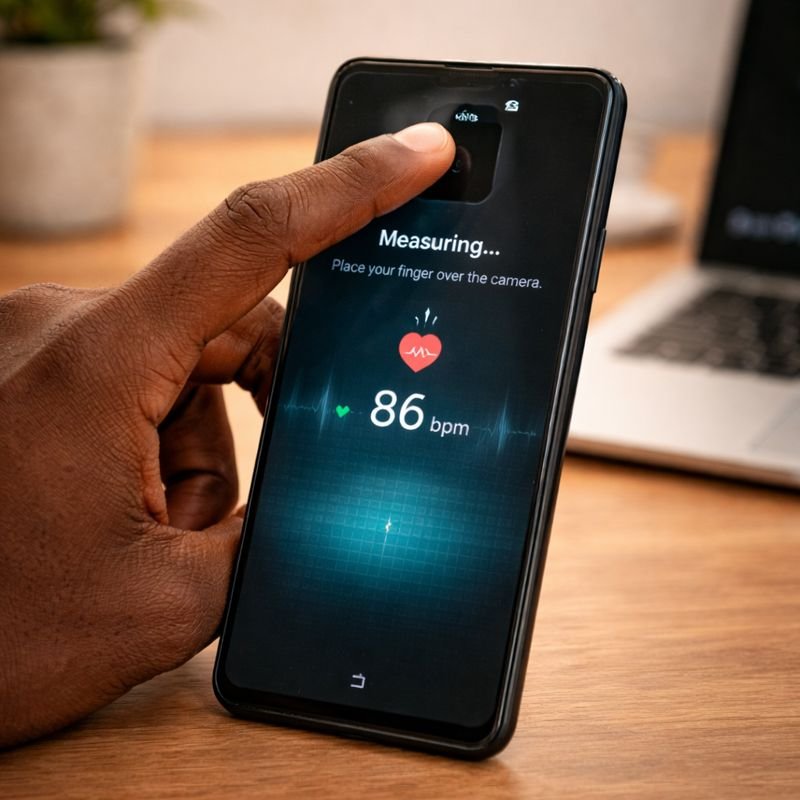
- Heart Rate Check: Place your finger on the camera lens, and your phone can estimate your heart rate.
- Live Captions: Watching a video or listening to audio? Your phone can show captions in real time, even if the video has no subtitles.
Heart Rate via Camera:
- Open the Health app (Google Fit or your phone’s health app).
- Place your finger gently on the rear camera lens.
- Wait a few seconds → your heart rate appears.
Live Captions:
- Go to Settings → Accessibility → Live Captions.
- Turn it on.
- Play any video → captions appear automatically.
These features help with health monitoring and make phones more inclusive for people with hearing difficulties.
Quick Recap
| Feature | What It Means for You |
|---|---|
| Circle to Search | Search anything on screen without typing |
| AI Summaries | Save time reading and replying |
| Emergency Messaging | Send help messages even without network |
| AI Wallpapers | Create custom phone backgrounds |
| Cross-Device Sync | Copy and paste across devices |
| Health Tools | Check heart rate and get captions |
FAQ: Common Questions About These Features
1. Will my phone get these features?
Most Android 13 and newer phones already support Circle to Search and AI summaries. Emergency satellite messaging is still limited to newer premium models, but more phones will add it soon.
2. Do I need internet for Circle to Search?
Yes, it uses Google’s database, so you need mobile data or Wi-Fi.
3. Can I turn off AI features?
Yes. Android lets you control or disable most AI tools in Settings.
4. Is satellite messaging free?
Emergency use may be free, but regular satellite messaging often requires a subscription.
5. Are foldable phones strong enough?
Yes. Modern foldables use stronger glass and hinges, so they last much longer than older versions.
Rounding Off
These Android features are not just small updates, they are new ways of using your phone. From searching without typing to sending emergency messages without network, they make smartphones more powerful and practical.
For Nigerian users, these features mean less stress, more convenience, and better safety. Whether you use your phone for business, school, or fun, Android is becoming more like a personal assistant than just a gadget.
SHOP ORIGINAL GADGETS AT THE PHONEPRENEUR
Discover more from The Phonepreneur Global
Subscribe to get the latest posts sent to your email.
